How to Track Your Progress on Open edX
Monitoring your learning journey is key to staying on track. Open edX provides built-in tools to help you view your grades, keep track of assignment deadlines, and check your overall course completion status. Follow this guide to monitor your academic progress.
Part 1: Viewing Your Grades and Scores
-
Open the Course:
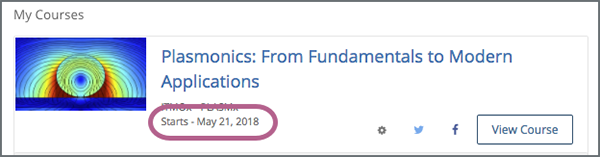
- Navigate to your Dashboard and click "View Course" on the course you want to check.
-
Access the Progress Tab:
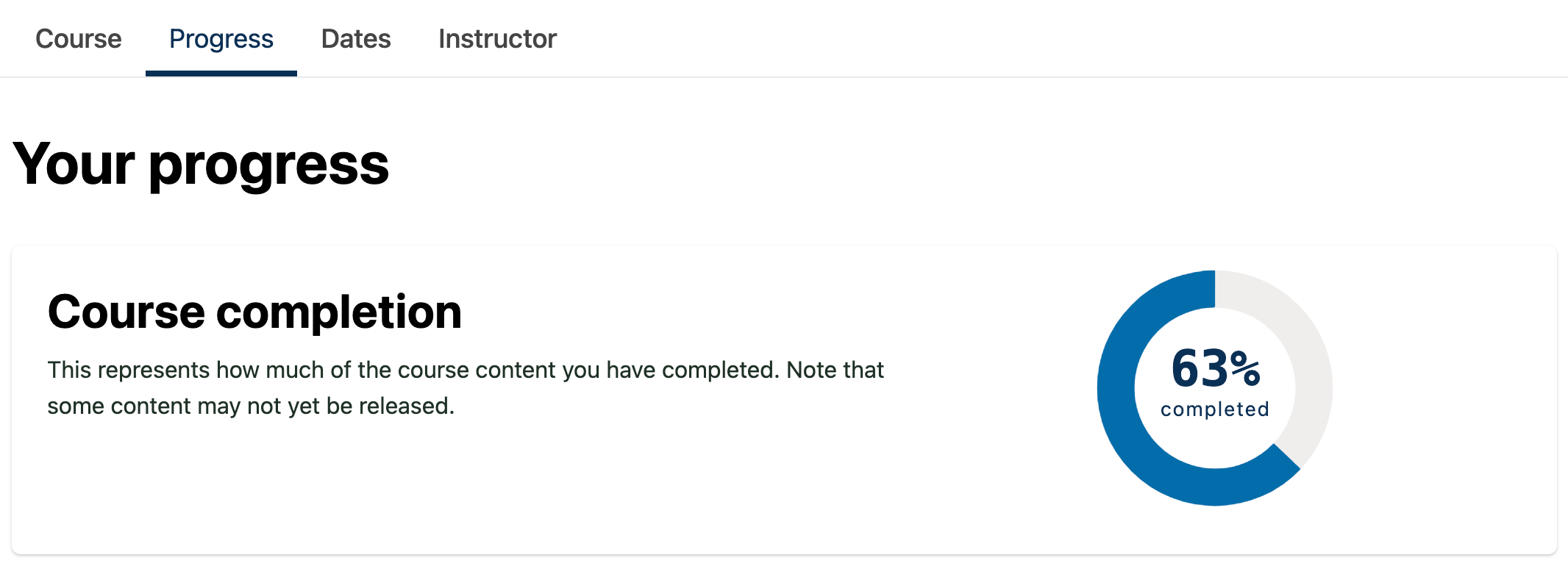
- In the top navigation menu of the course view, click on the "Progress" tab.
-
Review Your Performance:
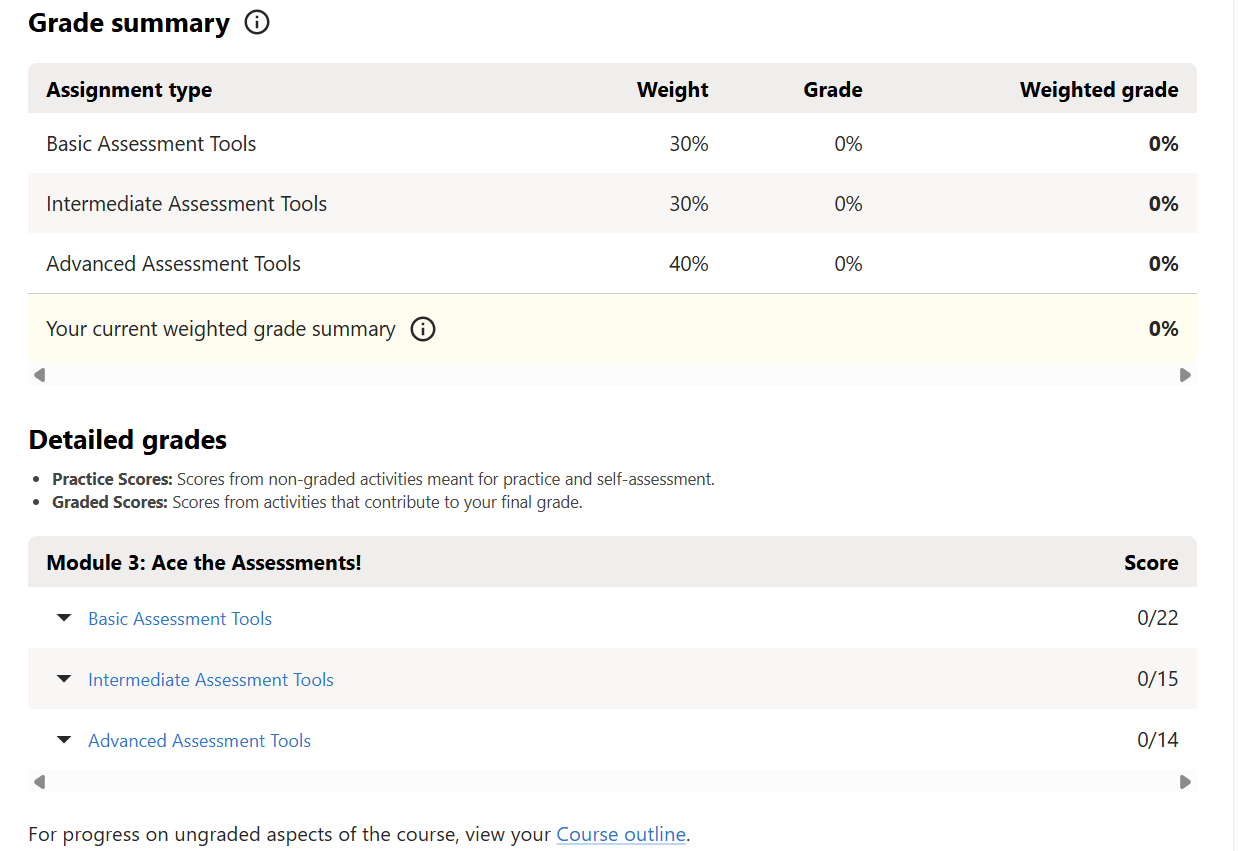
- Here you will see a detailed breakdown of your scores across all graded assignments, quizzes, and exams.
- Visual charts and percentage bars show your overall standing and whether you are meeting the passing grade requirements for the course.
Part 2: Keeping Track of Deadlines
-
Check Upcoming Dates:
- Many Open edX courses feature a Dates tab in the course navigation bar. Click here to view a chronological timeline of upcoming assignment due dates, exam windows, and course milestones.
-
Dashboard Reminders:
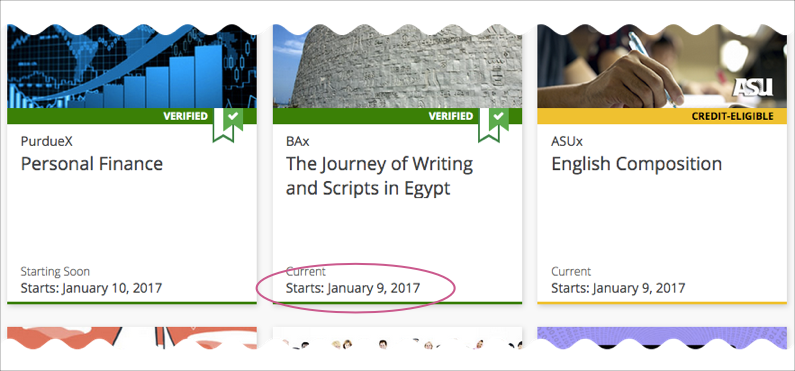
- Important upcoming deadlines are often summarized directly on your main Dashboard course cards so you never miss a submission.
Part 3: Checking Completion Status
-
Review Course Sections:
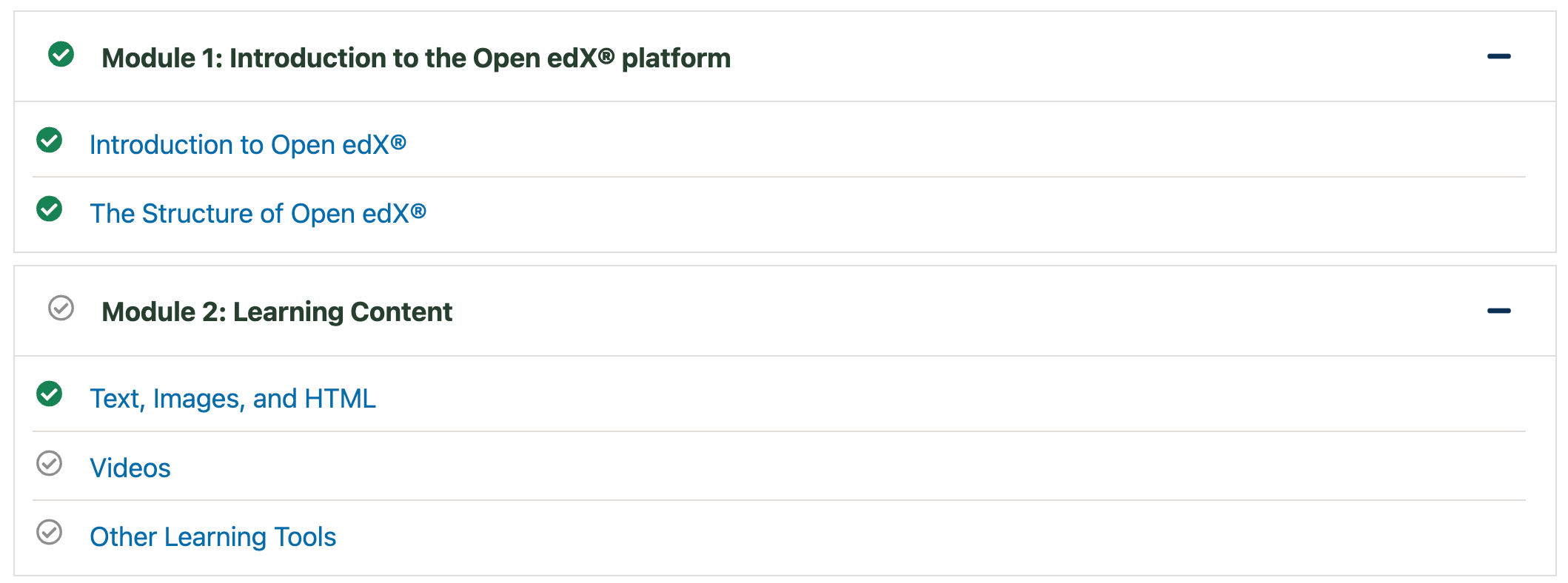
- As you complete video lectures, readings, and problem sets, green checkmarks will appear next to completed items in the course outline (left sidebar).
-
Course Certificate Eligibility:
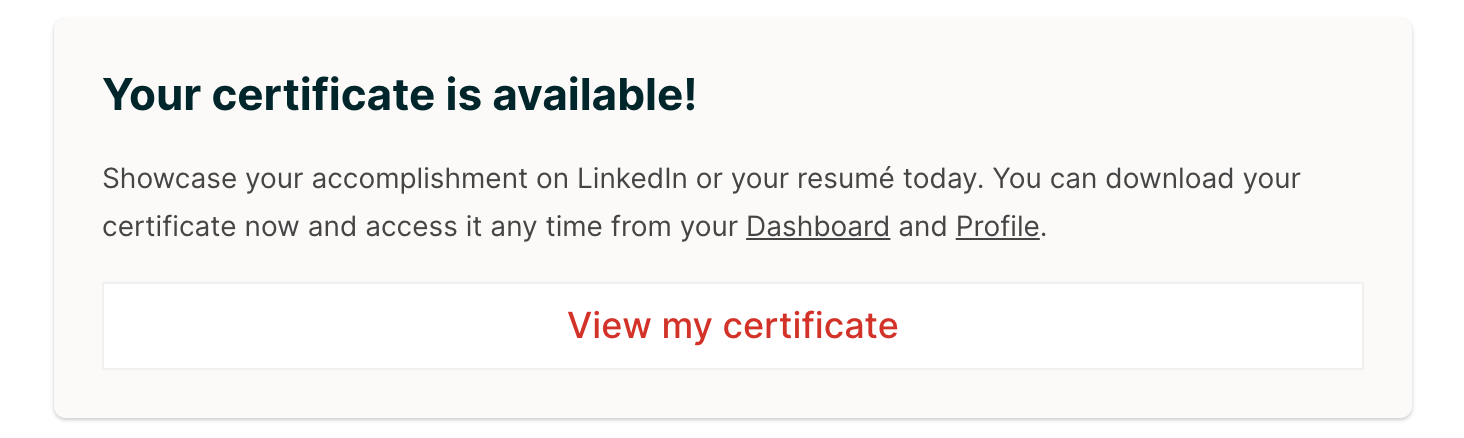
- If your course offers a certificate, the Progress page will indicate your completion status against the required passing threshold, letting you know when you have successfully satisfied all criteria.
Need help? If you experience any issues during registration or login, please reach out to support@abstract-technology.de.