How to Find and Enroll in Courses on Open edX
Once you are logged into your Open edX account, you can explore available courses, view detailed syllabi, and enroll with just a few clicks. Follow this guide to find and start your next learning journey.
Part 1: Finding Courses
-
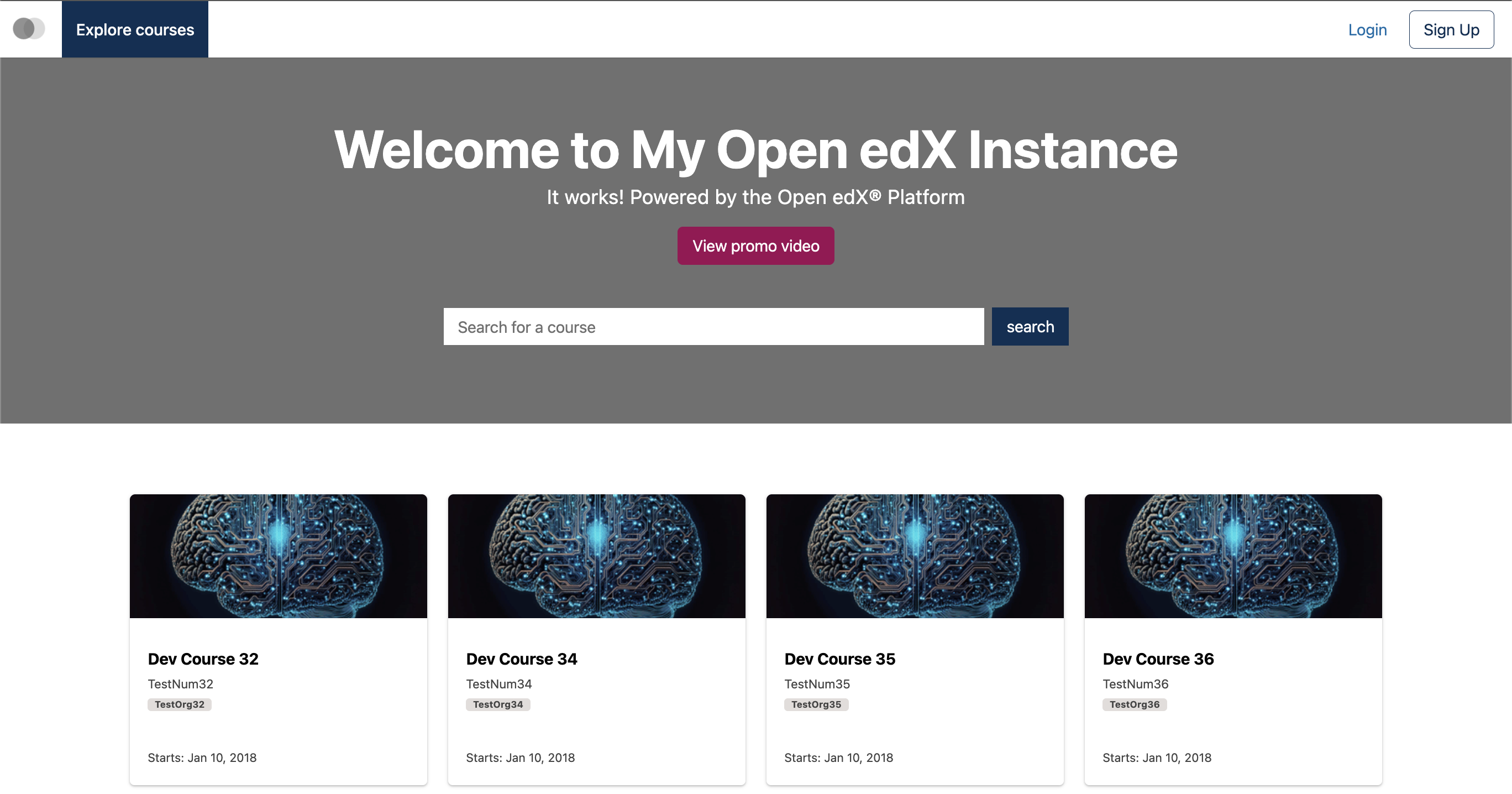
Navigate to the Course Catalog / Explore Page:
- After logging in, click on "Explore Courses", "Discover", or "Courses" in the top navigation bar of the platform.
-
Browse or Search:
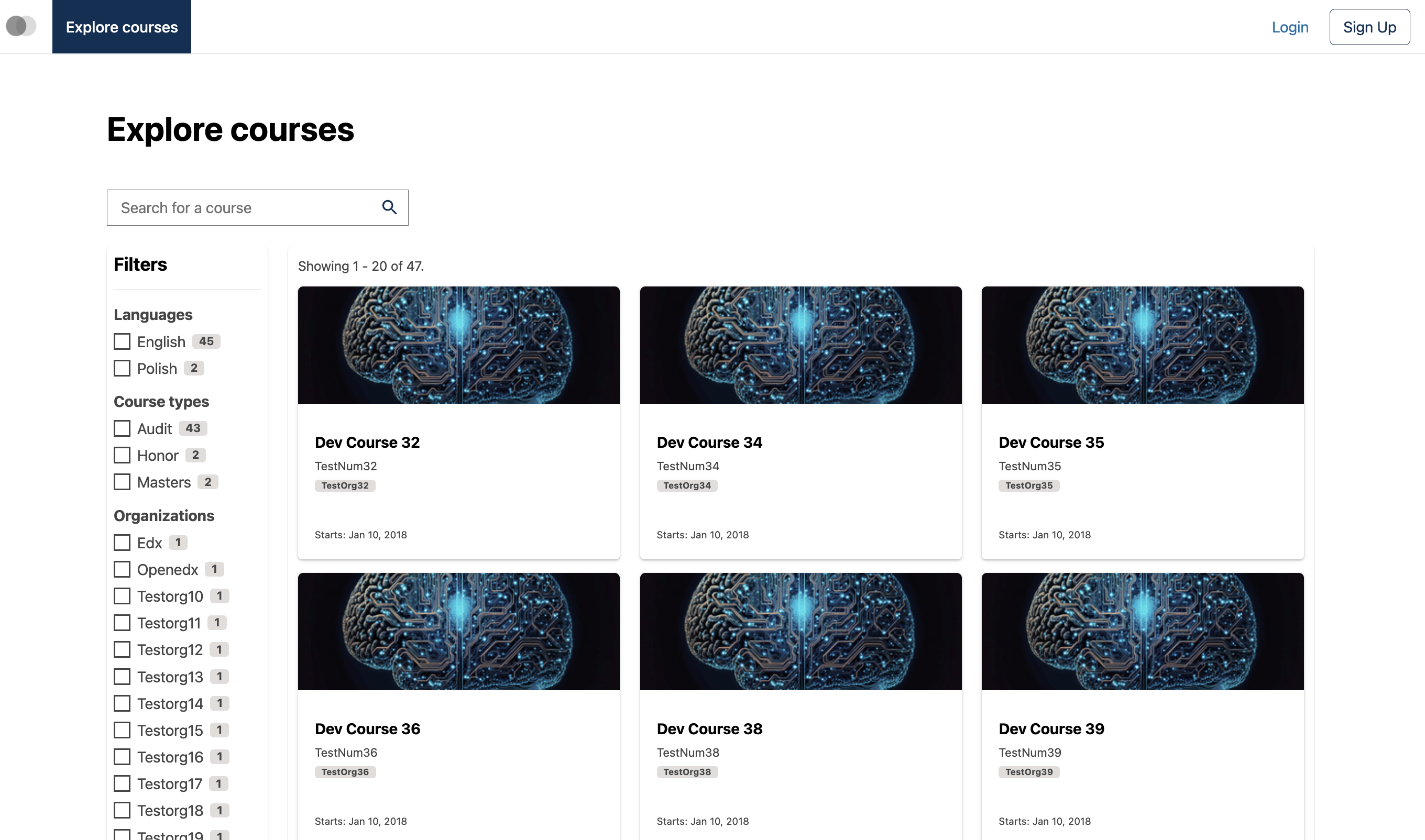
- Use the Search Bar to type in keywords, topics, or course titles.
- Use the Filter Sidebar (if available) to narrow down courses by subject, difficulty level, language, or instructor.
-
View Course Details:
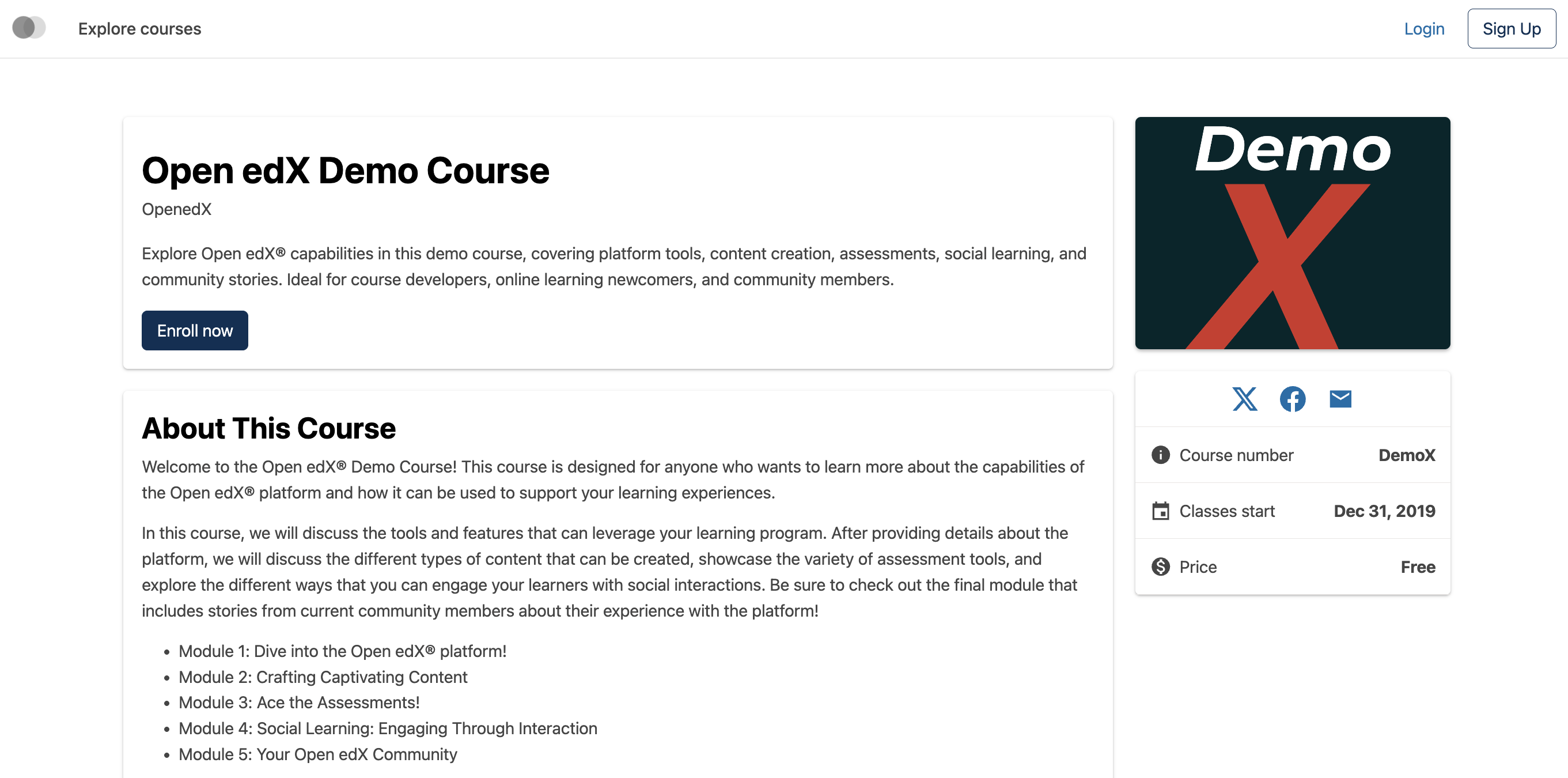
- Click on any course card that interests you to open its About Page.
- Here you can read the course overview, check prerequisites, see estimated weekly time commitments, and view what you will learn.
Part 2: Enrolling in a Course
-
Select Your Enrollment Option (if applicable):
- Depending on the platform configuration, you may see options for different enrollment tracks (e.g., Audit track for free access or Verified track for a certificate). Choose the option that fits your goals.
-
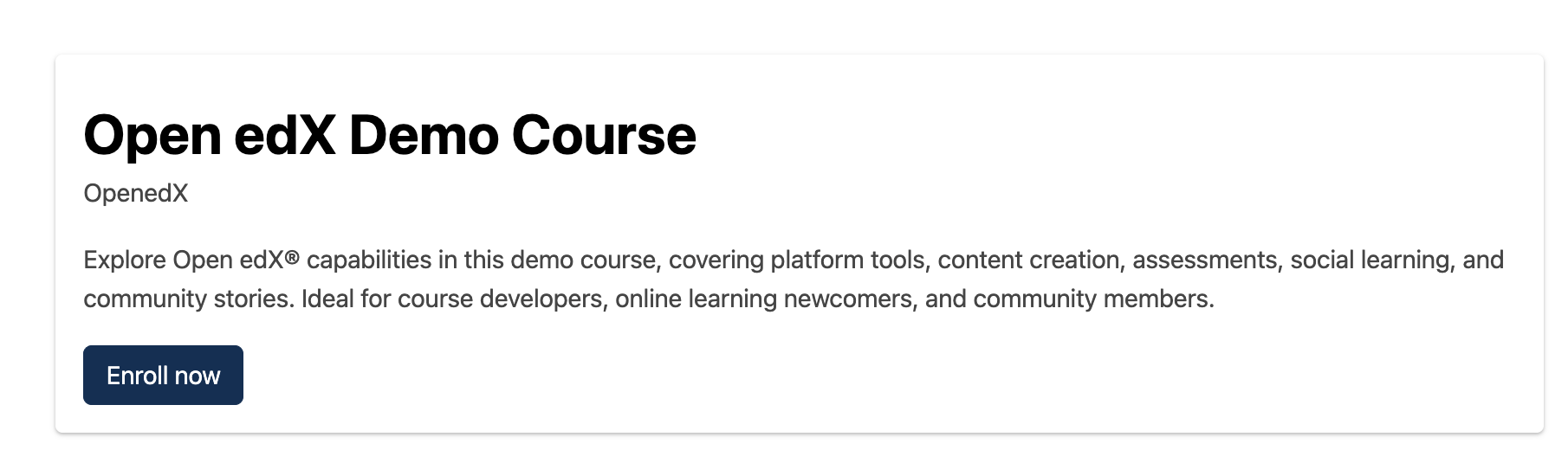
Click Enroll:
- Click the "Enroll Now", "Register", or "Add to Cart" button (prominently displayed on the course overview page).
-
Confirmation & Automatic Redirect:
- Once enrolled, you will see a confirmation message, and the system will automatically redirect you to your Dashboard or directly into the course home.
Part 3: Accessing Your Enrolled Courses
-
Go to Your Dashboard:
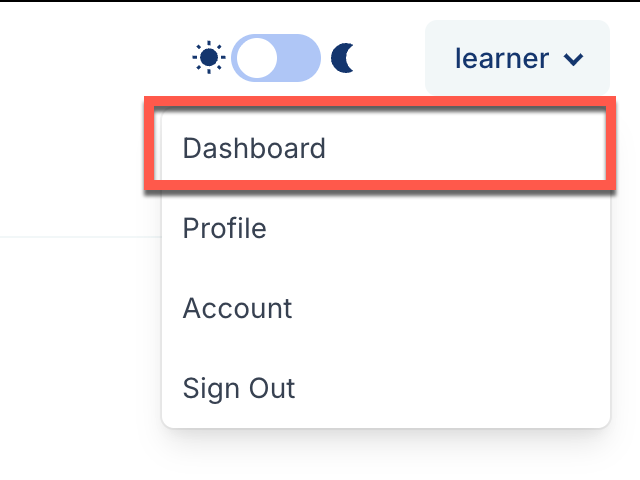
- Click on "Dashboard" in the top menu at any time to see all the courses you are currently enrolled in.
-
Start Learning:
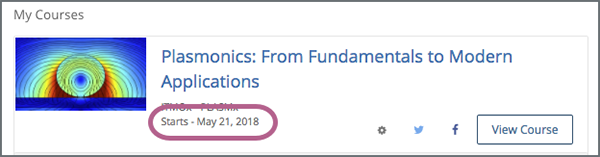
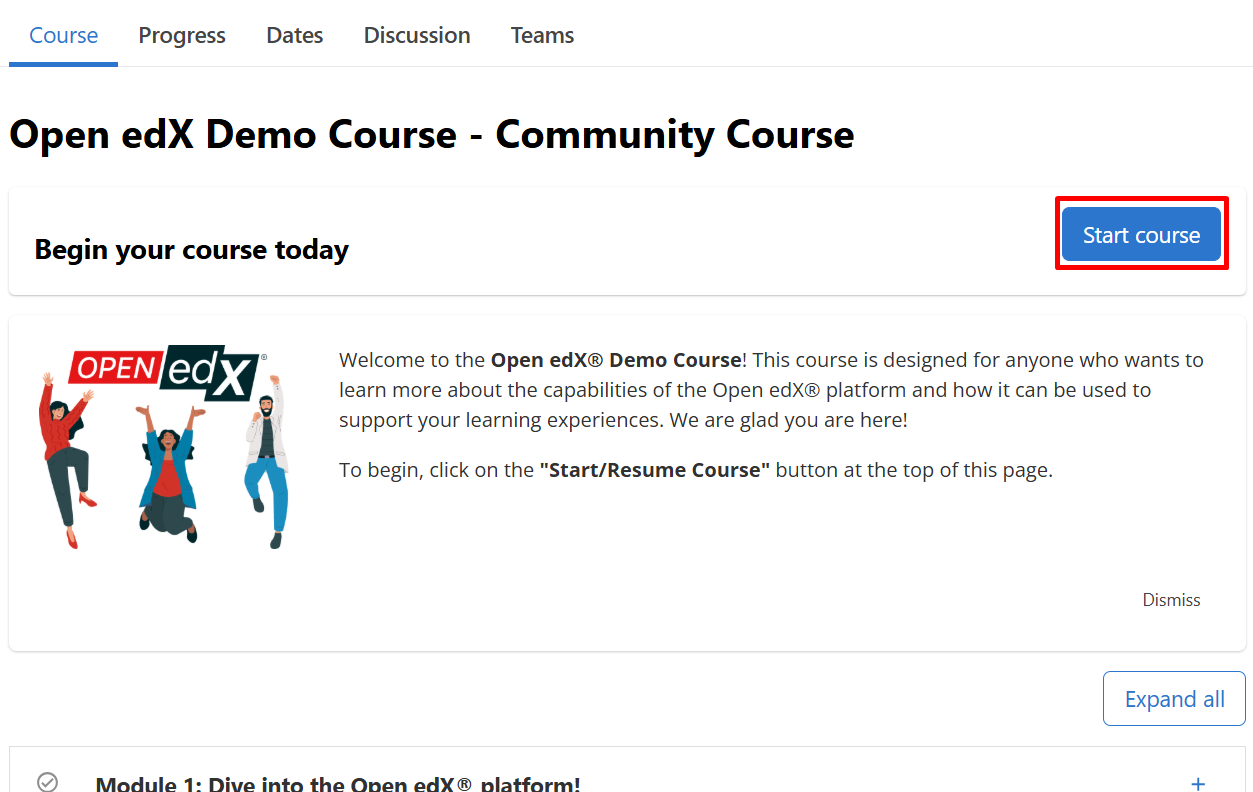
- Locate the course card on your dashboard and click "View Course" or "Resume Course" to open the courseware, view video lectures, complete assignments, and track your progress.
Need help? If you experience any issues during registration or login, please reach out to support@abstract-technology.de.