How to Set Up Subsection Prerequisites in Open edX Studio
Subsection prerequisites allow you to restrict access to a specific subsection until learners achieve a minimum score or completion percentage in a designated prerequisite subsection. Follow this guide to configure and apply prerequisites in your Open edX course.
Part 1: Enabling Subsection Prerequisites in Course Settings
Before configuring prerequisites on individual modules, you must enable the feature in your course's advanced settings.
-
Open Your Course in Studio: Log in to Open edX Studio and navigate to the course where you want to set up prerequisites.
-
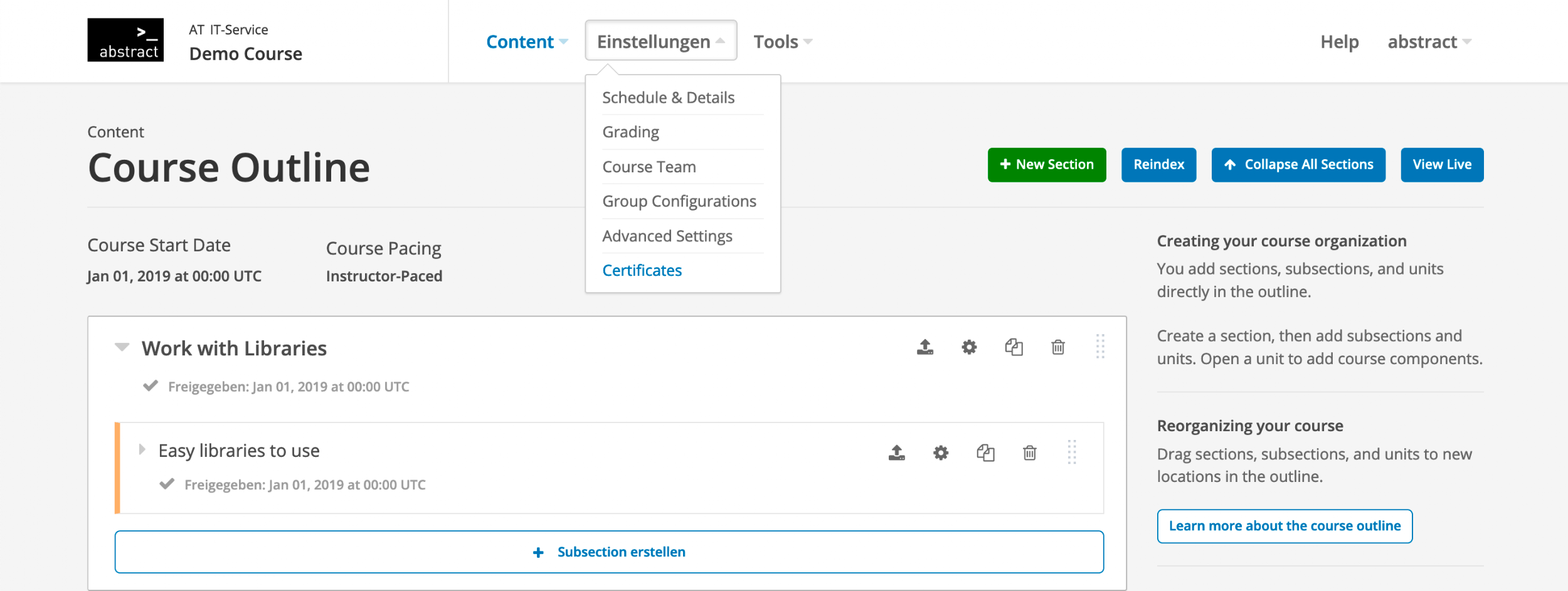
Access Advanced Settings: Click on the "Settings" dropdown menu in the top navigation bar and select "Advanced Settings".
-
Enable the Feature: Scroll down to find the field Enable Subsection Prerequisites. Type
trueinto the input field.
-
Save Changes: Click the "Save Changes" button at the bottom of the page.
Part 2: Configuring the Prerequisite Subsection
Next, you need to designate which subsection must be completed first.
-
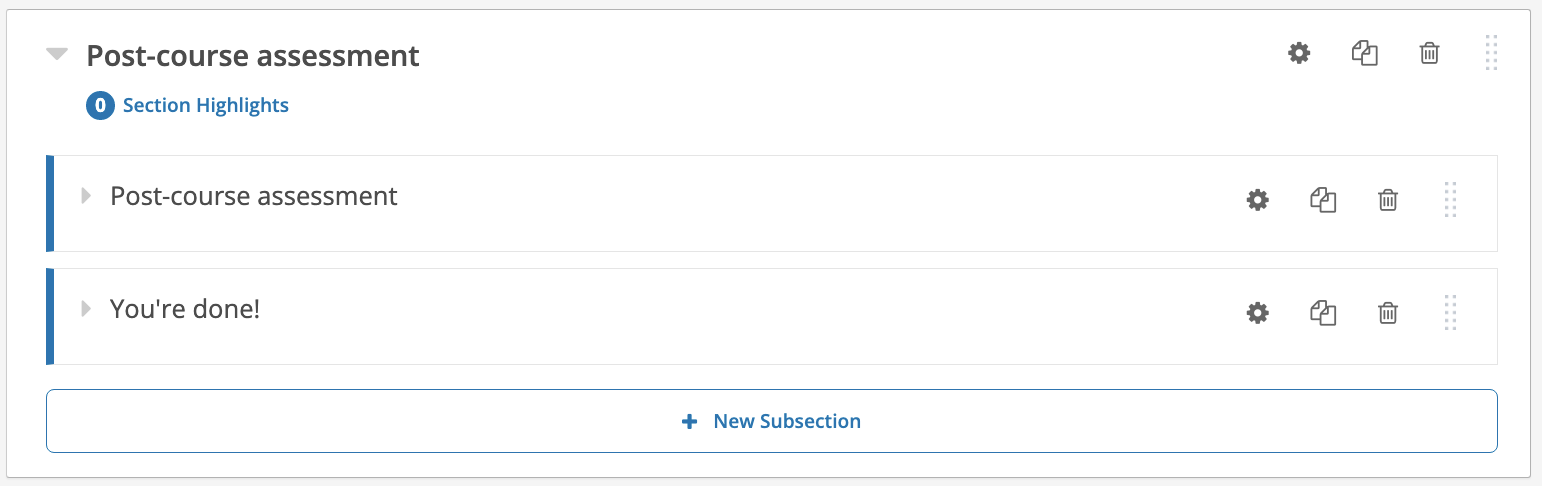
Navigate to the Course Outline: Go to your course's main Course Outline view. Ensure you have a section containing at least two subsections (for example: Post-course assessment and You're done!).
-
Open Subsection Settings: Locate the subsection that learners must complete first (the prerequisite). Click its Configure (gear) icon.
-
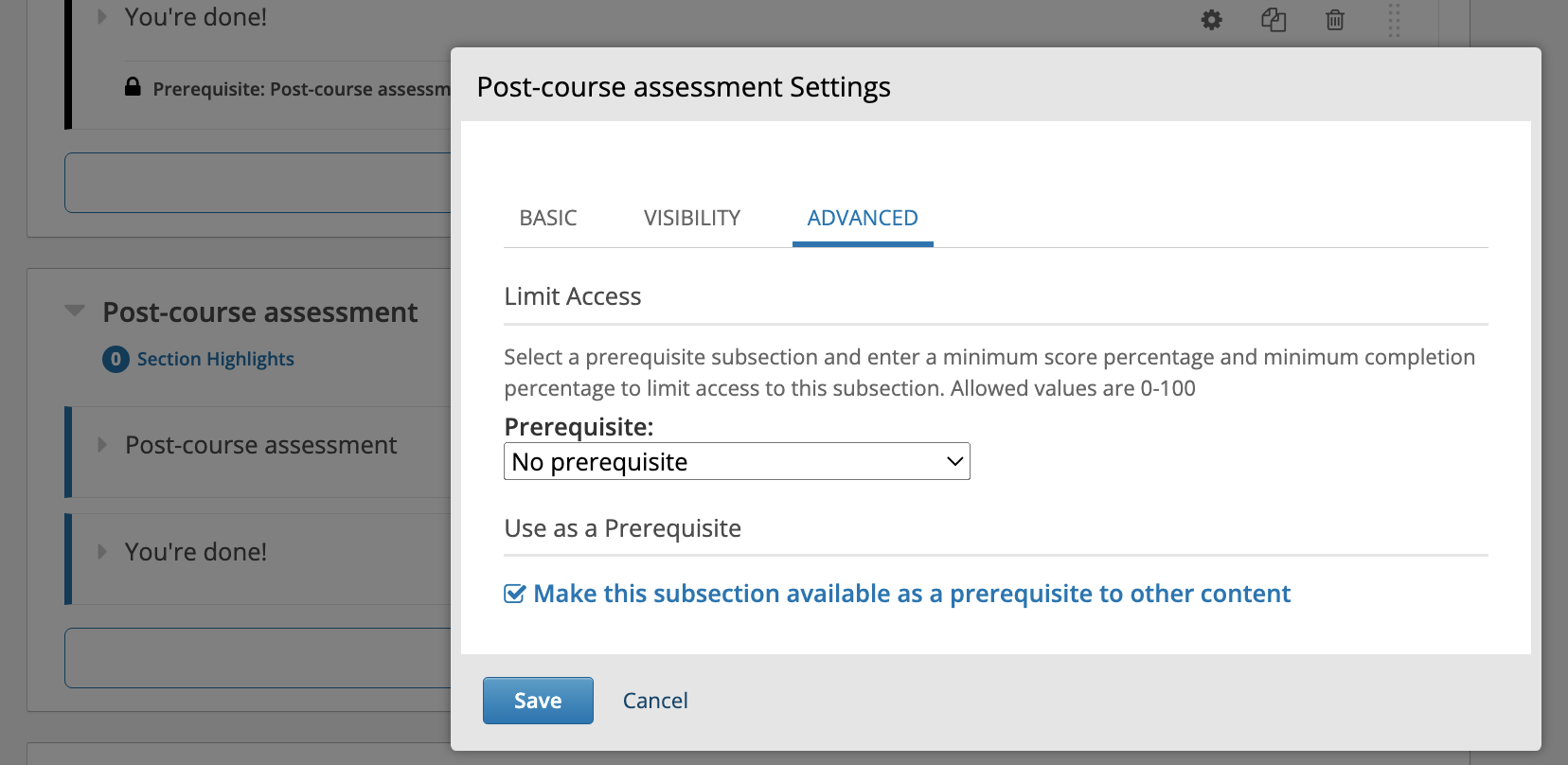
Select Advanced Options: In the pop-up modal, click on the ADVANCED tab.
-
Mark as a Prerequisite: Check the box labeled "Make this subsection available as a prerequisite to other content".
-
Save: Click "Save".
Part 3: Restricting the Dependent Subsection
Now, configure the subsequent subsection so that it remains locked until the prerequisite is satisfied.
-
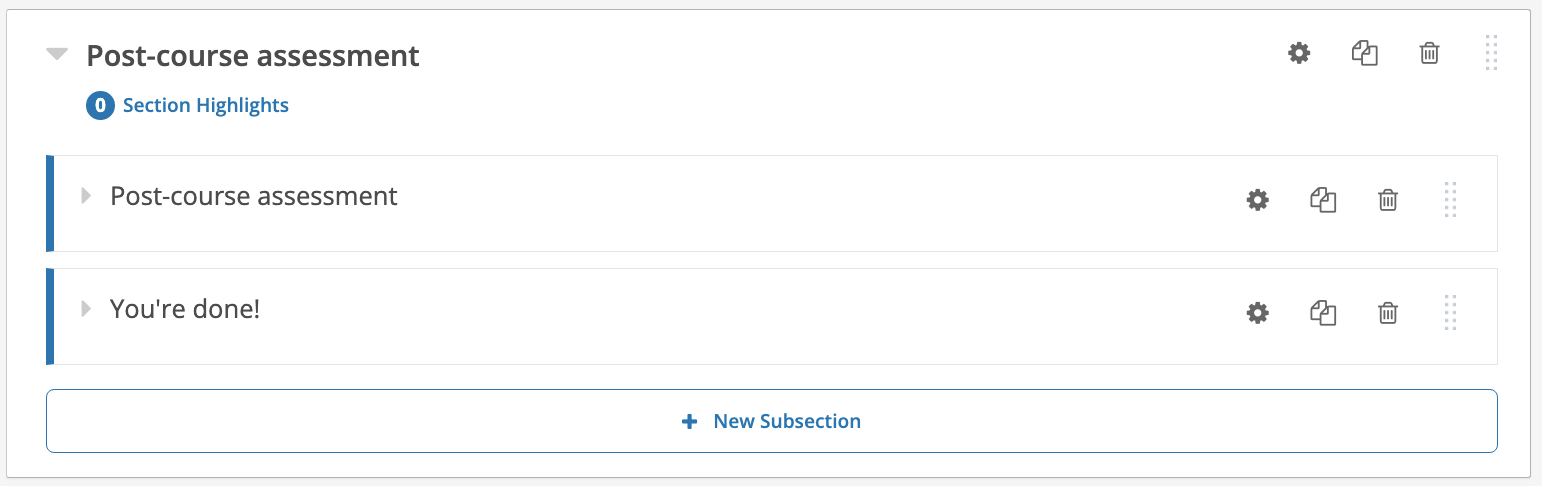
Open Settings for the Dependent Subsection: In the course outline, click the Configure (gear) icon for the subsection you want to block (e.g., You're done!).
-
Access Advanced Settings: In the pop-up modal, select the ADVANCED tab.
-
Select the Prerequisite: Under Prerequisite, click the dropdown menu and select the name of the prerequisite subsection you configured in Part 2.
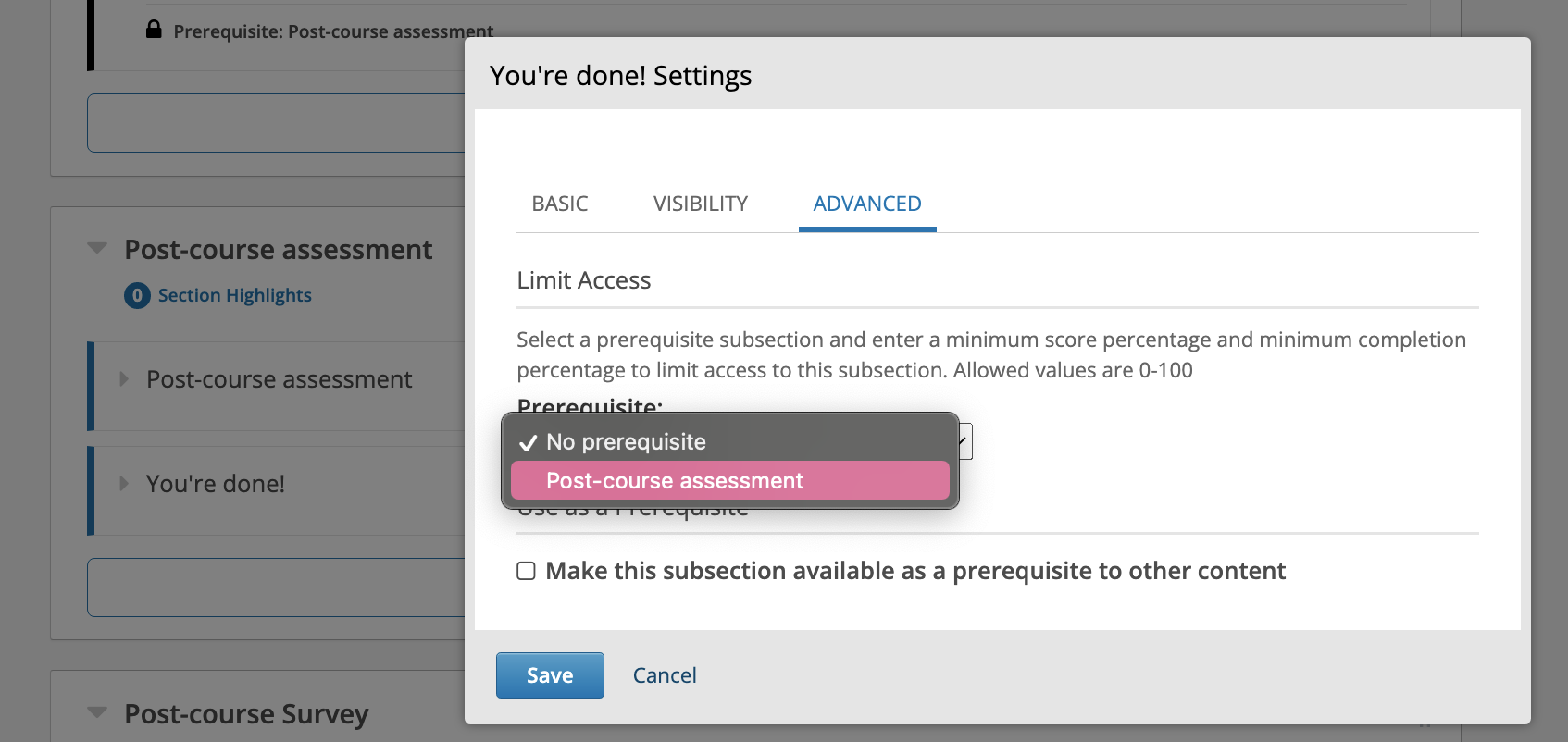
-
Define Minimum Requirements: Once you select the prerequisite, additional fields will appear:
- Minimum Score (%): Enter the percentage of the total score learners must earn in the prerequisite subsection to unlock this content (allowed values:
0-100). Note: If the prerequisite is not graded, set this to0. - Minimum Completion (%): Enter the percentage of the prerequisite subsection that learners must complete (allowed values:
0-100). Note: If you set both score and completion greater than zero, learners must satisfy both conditions.
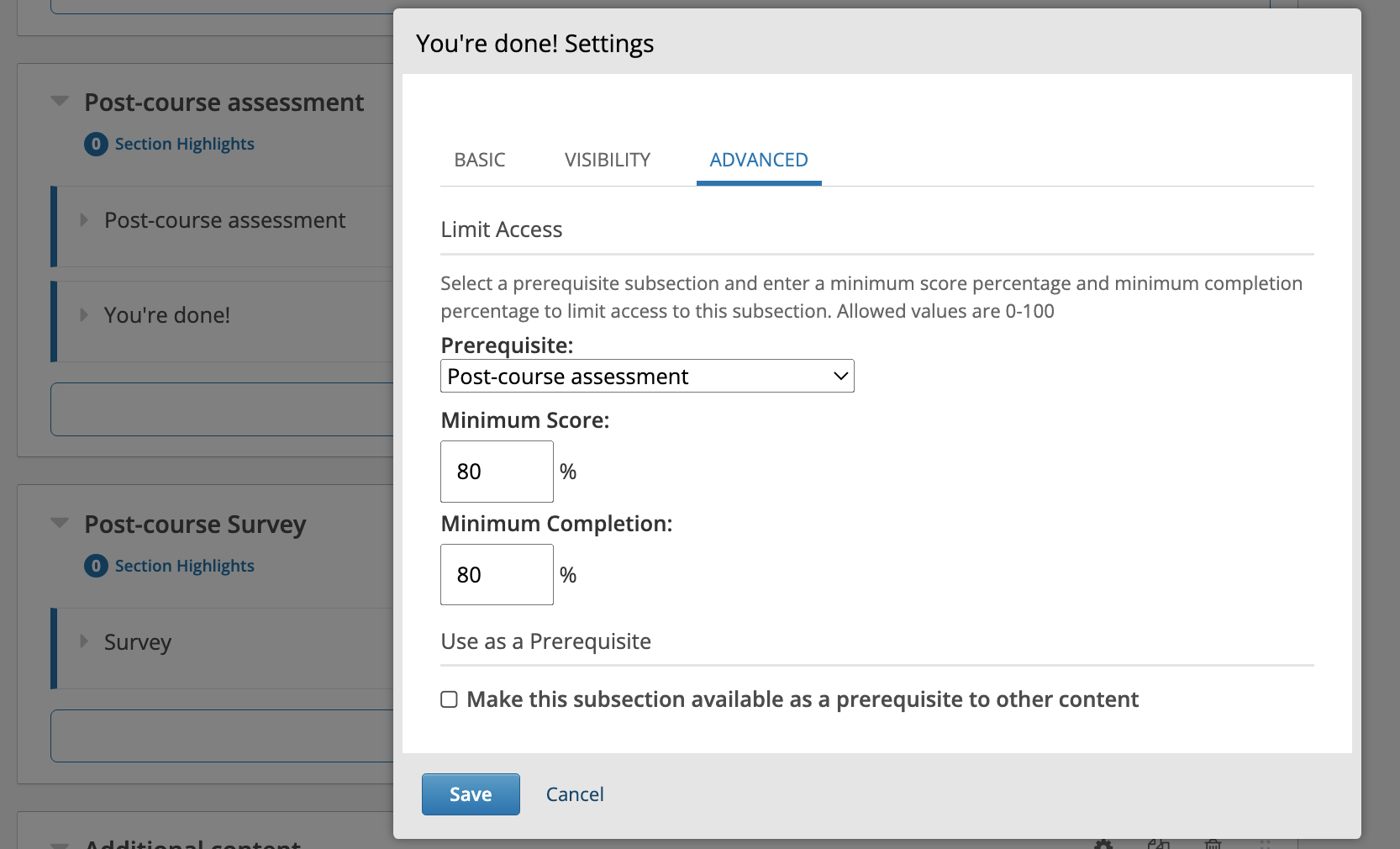
- Minimum Score (%): Enter the percentage of the total score learners must earn in the prerequisite subsection to unlock this content (allowed values:
-
Save Configuration: Click "Save".
-
Verify in the Course Outline: Once saved, a padlock icon and a label reading
Prerequisite: [Name]will appear directly beneath the locked subsection in your course outline.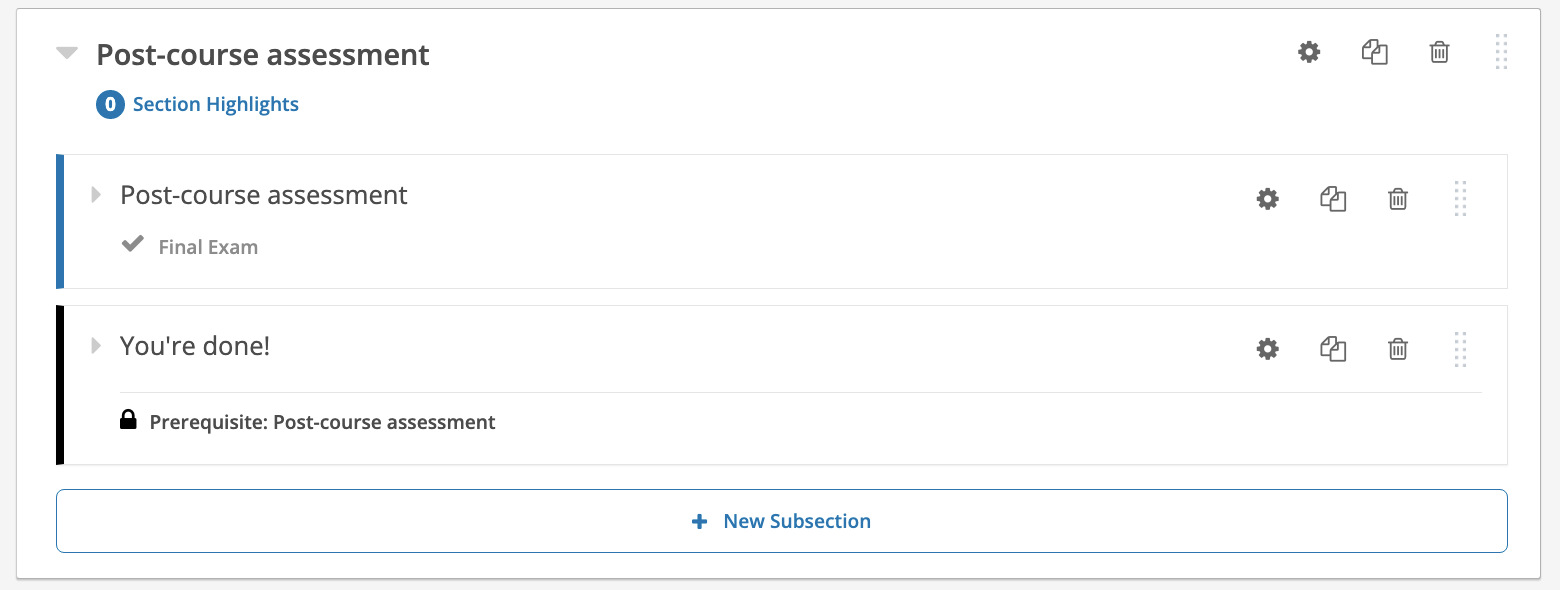
Need help? If you experience any issues during registration or login, please reach out to support@abstract-technology.de.