How to Publish a Course in Open edX Studio
Once you have built your curriculum, added content units, and configured your grading policy, it is time to make your course live for learners. Follow this guide to publish your course and open enrollment in Open edX Studio.
Part 1: Pre-Publishing Checklist
Before publishing your course publicly, ensure you have completed the following checks:
-
Review Course Outline: Ensure all sections, subsections, and units are properly structured and that individual unit content has been published.
-
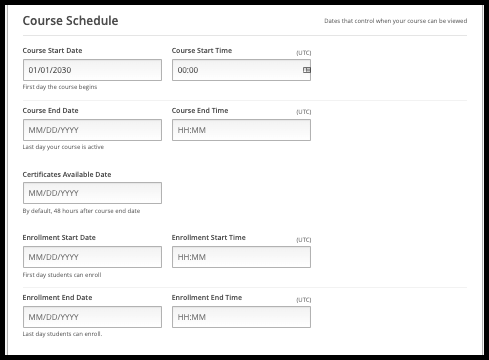
Check Course Dates: Verify that your course start date, end date, and enrollment start/end dates are correctly configured in Settings > Schedule & Details.
-
Verify Grading Settings: Confirm that your grading categories total 100% and your passing grade is set in Settings > Grading.
-
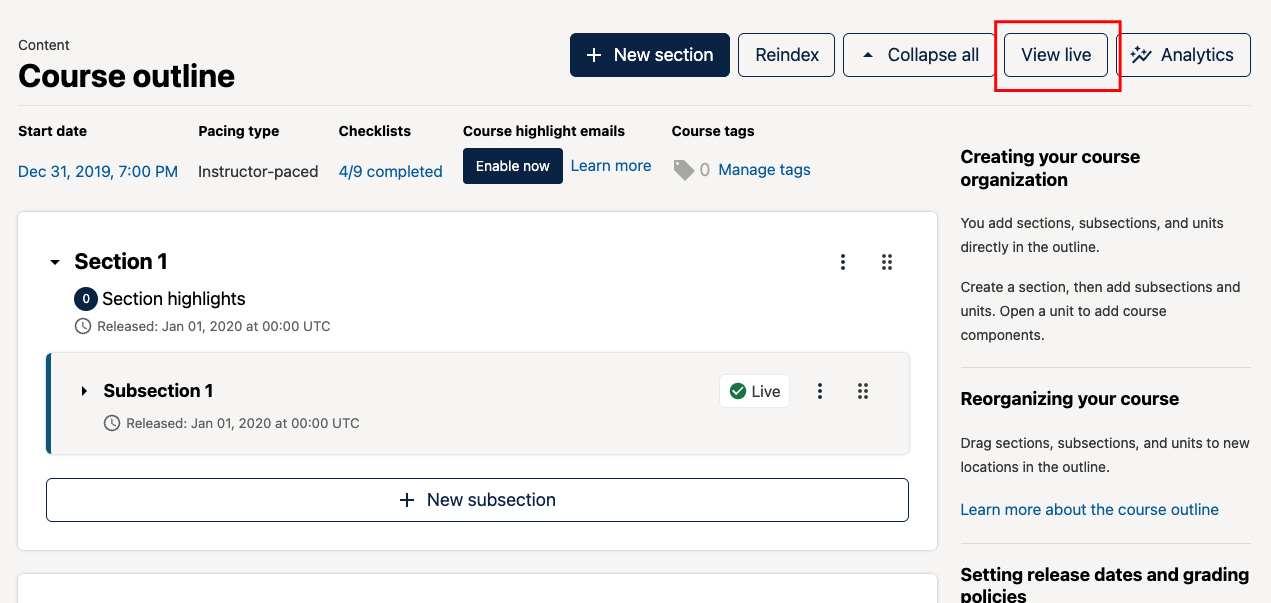
Run a Preview: Click the "View Live" or "Preview" button in Studio to test the learner experience and ensure all links, videos, and quizzes work correctly.
Part 2: Publishing the Course
-
Navigate to the Course Outline:
- Open your course in Open edX Studio and ensure you are on the Course Outline page.
-
Locate the Publish Banner:
-
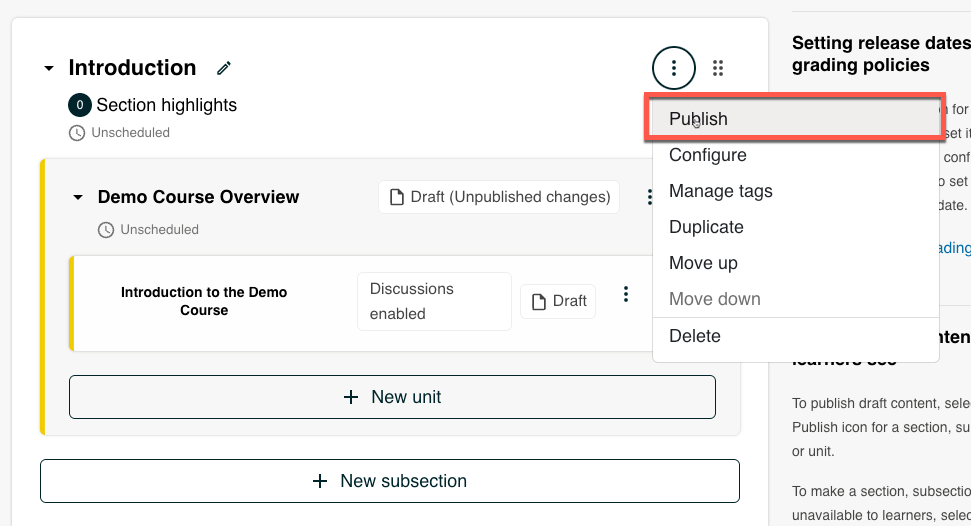
If you have unpublished changes or a newly created course, look for the notification banner or button at the top or side of the course outline that reads "Publish" or "Release Course".
-
-
Confirm Publication:
-
Click the "Publish" button.
-
The system will push all updated units, subsections, and course metadata live to the LMS (Learning Management System).
-
Part 3: Opening Enrollment
-
Check Enrollment Status:
- By default, once a course is published and the enrollment start date has arrived, learners can visit the course about page and enroll.
-
Verify on the LMS:
-
Log into your platform's main LMS portal (or click "View Live" in Studio) to confirm that the course appears in the course catalog and that the "Enroll Now" button is active and functioning properly.
-
Need help? If you experience any issues during registration or login, please reach out to support@abstract-technology.de.