How to Enable and Manage Learner Engagement and Milestones in Open edX
Keeping learners motivated and engaged throughout self-paced online courses is essential for high completion rates. Open edX includes built-in engagement tools—such as section completion pop-ups, course exit celebrations, weekly learning goals with automated email reminders, and streak celebrations.
Follow this guide to activate and configure these features via the Django Administration panel.
Part 1: Activating Section Completion Milestones
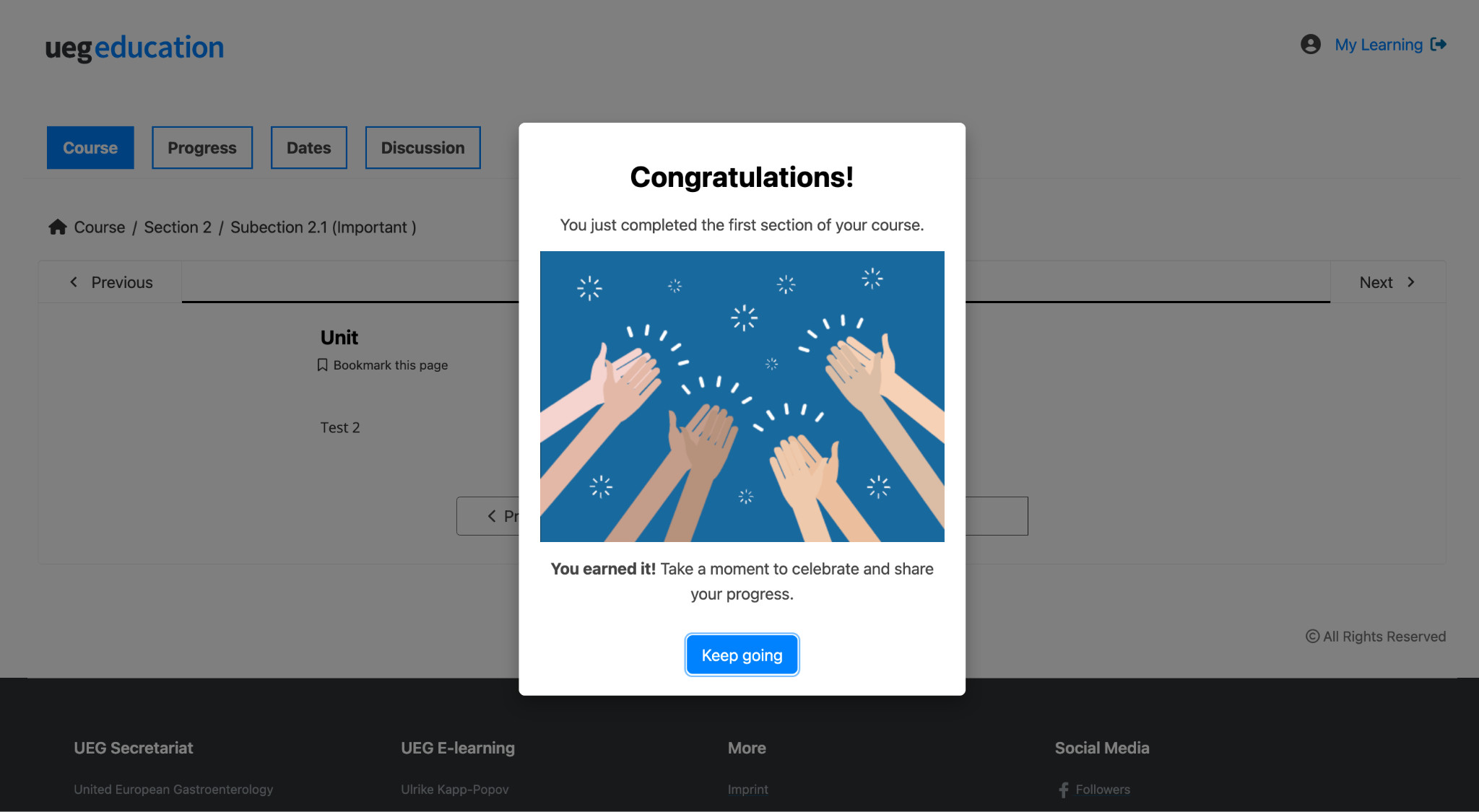
When learners complete the first section of a course, a celebratory pop-up modal appears to acknowledge their progress.
- Log In to Django Admin:
Log in to your Open edX platform with an administrator account and open the Django Administration panel (https://yourdomain.com/admin/). - Navigate to Waffle Flags:
Scroll down to the django-waffle section and click on Flags. - Add a New Flag:
Click the "Add flag +" button in the top-right corner. - Configure the Flag:
- Flag Name: Enter
courseware.mfe_progress_milestones. - Everyone: Choose "Yes" from the dropdown menu to enable it platform-wide.
- Flag Name: Enter
- Save:
Scroll to the bottom of the form and click Save.
Part 2: Activating Course Completion Celebrations
When learners successfully finish an entire course, a congratulatory microfrontend completion page appears.

- Access Django Admin:
Navigate to the Django Administration panel. - Open Waffle Flags:
Under django-waffle, click Flags, then click "Add flag +". - Configure the Flag:
- Flag Name: Enter
courseware.microfrontend_course_exit_page. - Everyone: Select "Yes".
- Flag Name: Enter
- Save:
Click Save at the bottom of the form.
Part 3: Enabling Weekly Course Goals and Email Reminders
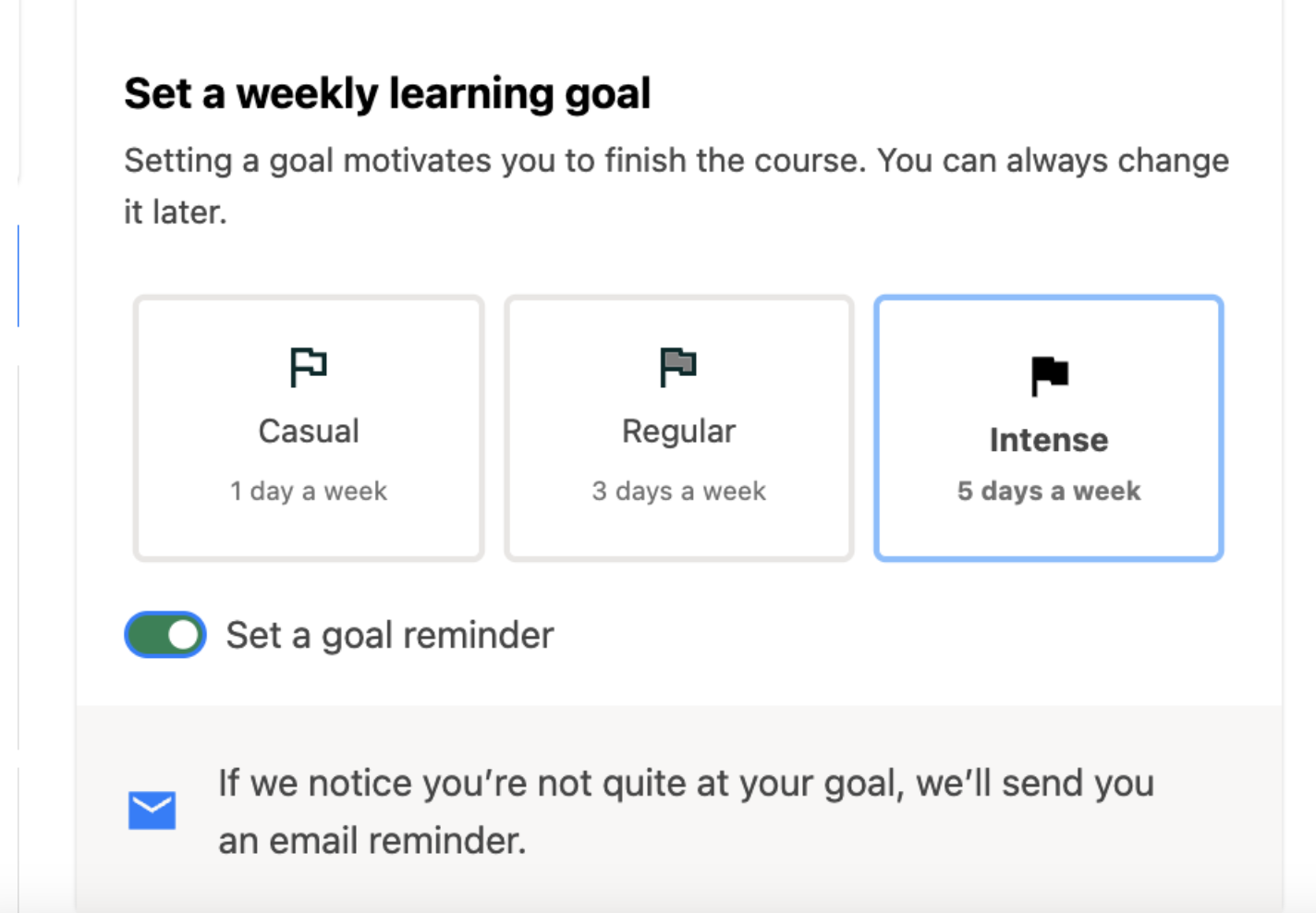
This feature allows learners to set personal study goals (Casual: 1 day/week, Regular: 3 days/week, or Intense: 5 days/week) and receive automated email reminders if they fall behind schedule.
- Access Django Admin:
Go to your Django Administration panel. - Open Waffle Flags:
Navigate to django-waffle > Flags and click "Add flag +". - Configure the Flag:
- Flag Name: Enter
course_experience.enable_course_goals. - Everyone: Select "Yes".
- Flag Name: Enter
- Save:
Click Save.
Note on Automated Reminders: Depending on the learner's chosen goal frequency, automated reminder emails are dispatched prior to the end of the week (Sundays for 1 day/week, Fridays for 3 days/week, Wednesdays for 5 days/week) to give them time to log back in.

Part 4: Enabling Learner Streaks and Activity Celebrations
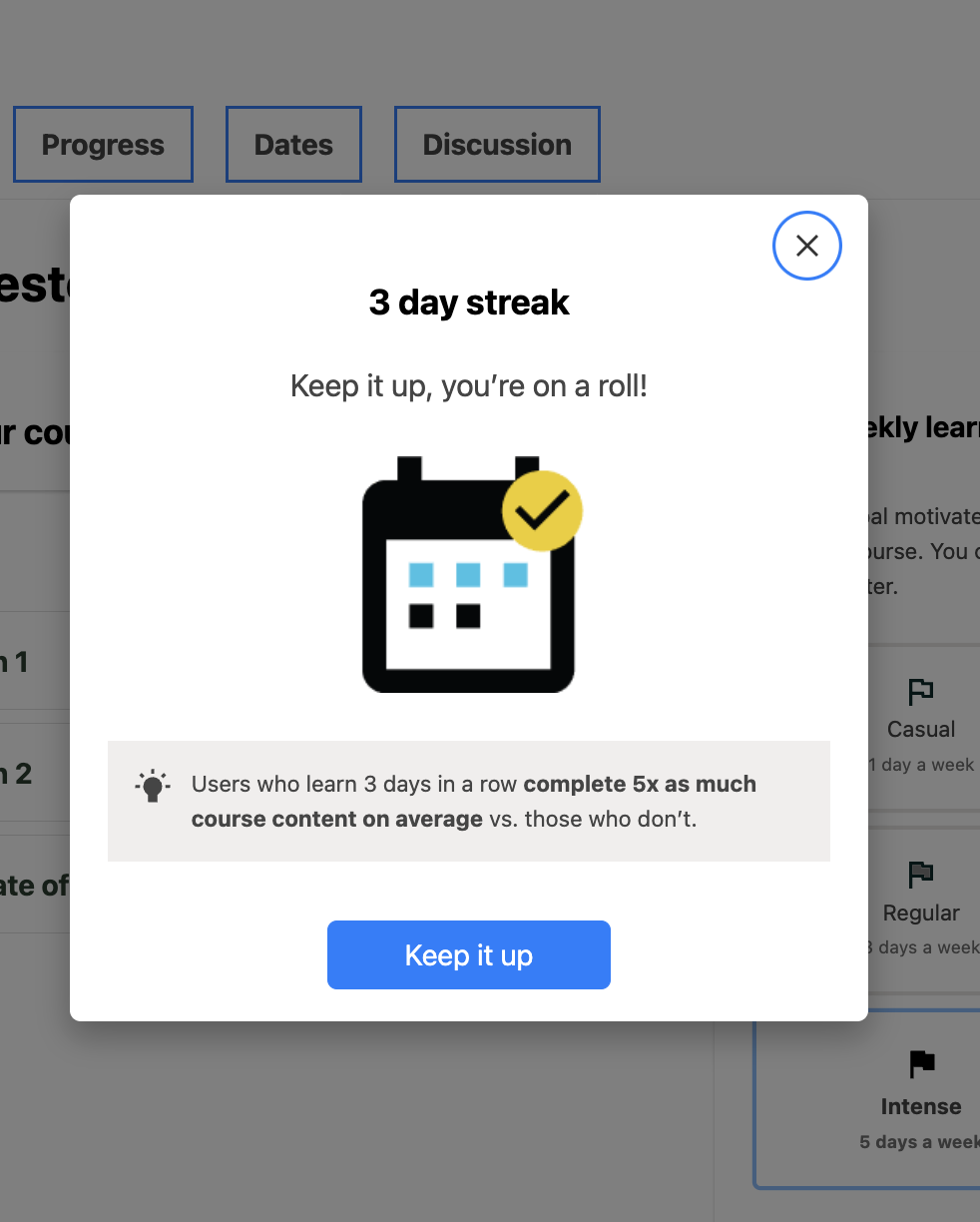
Streak celebrations track continuous learner engagement across platform activities and display milestone pop-ups (e.g., "3 day streak").
- Access Django Admin:
Go to your Django Administration panel and open django-waffle > Flags. Click "Add flag +". - Configure the Flag:
- Flag Name: Enter
courseware.mfe_progress_milestones_streak_celebration. (Note: This feature also requires Part 1courseware.mfe_progress_milestonesto be enabled). - Everyone: Select "Yes".
- Flag Name: Enter
- Save:
Click Save.
Part 5: Overriding Feature Flags for Specific Courses
If you want to enable or disable any of these milestone features for a single specific course rather than platform-wide, use Waffle course overrides:
- Navigate to Waffle Overrides:
In the Django Admin panel, scroll to Waffle_Utils and click on Waffle flag course overrides. - Add an Override:
Click "Add override +". - Configure the Override:
- Waffle Flag: Enter the specific flag name (e.g.,
courseware.mfe_progress_milestones_streak_celebration). - Course ID: Enter the exact Open edX course ID (e.g.,
course-v1:Organization+CourseCode+Run). - Override Choice: Choose "Force On" to activate it for that course only, or "Force Off" to disable a globally active feature for that specific course.
- Waffle Flag: Enter the specific flag name (e.g.,
- Save:
Click Save.
Need help? If you experience any issues during registration or login, please reach out to support@abstract-technology.de.