How to Add Course Content in Open edX Studio (Verawood Release)
Structuring your course content effectively in Open edX Studio ensures a smooth and engaging learning experience. Following the architectural updates in the Verawood release, here is how to build your curriculum using sections, subsections, and units.
Understanding the Course Hierarchy
Open edX uses a strict hierarchical structure:
- Sections (Chapters): Broad modules or weeks of your course.
- Subsections (Sequentials): Specific topics or sub-modules within a section.
- Units (Verticals): Individual pages containing the actual learning materials (videos, text, problems).
- Components: The building blocks inside a unit (HTML text, video players, quizzes, etc.).
Part 1: Structuring Sections and Subsections
-
Open Your Course in Studio:
- Log in to Studio and select your course to open the Course Outline.
-
Add a Section (Chapter):
-
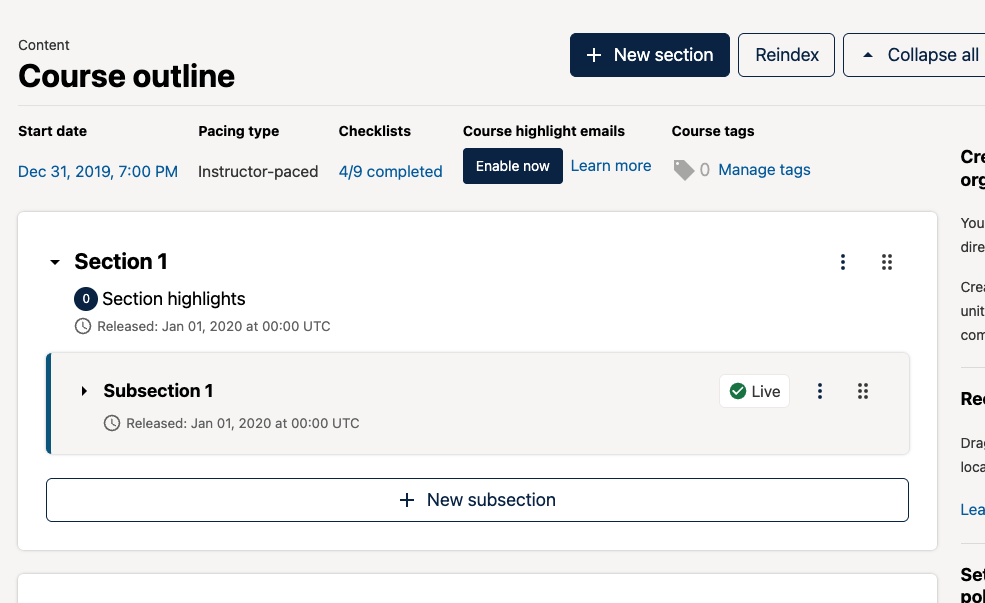
Click the "+ Add Section" button at the bottom of the course outline.
-
Enter a clear title for your section (e.g., Module 1: Introduction to Renewable Energy) and press Enter or click Save.
-
-
Add a Subsection (Sequential):
- Within your new section, click the "+ Add Subsection" button.
- Enter a descriptive title (e.g., 1.1 Core Concepts) and save.
Part 2: Creating Units and Adding Components
-
Add a Unit:
- Under your subsection, click the "+ Add Unit" button.
- Name your unit (e.g., Lecture: Energy Basics) and click Save.
-
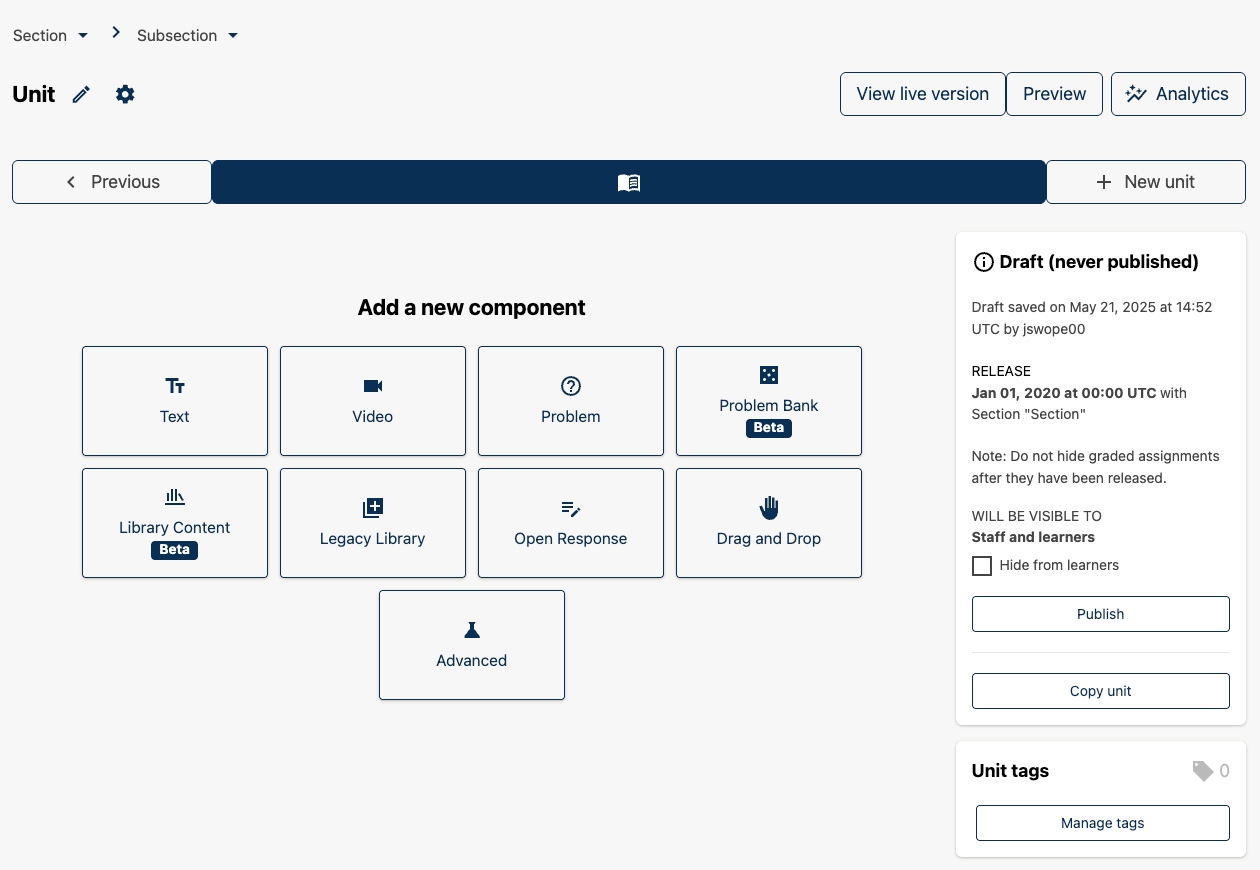
Open the Unit Editor:
-
Click on the newly created unit title to open the visual unit editor page.
-
-
Add Components (Verawood Layout):
-
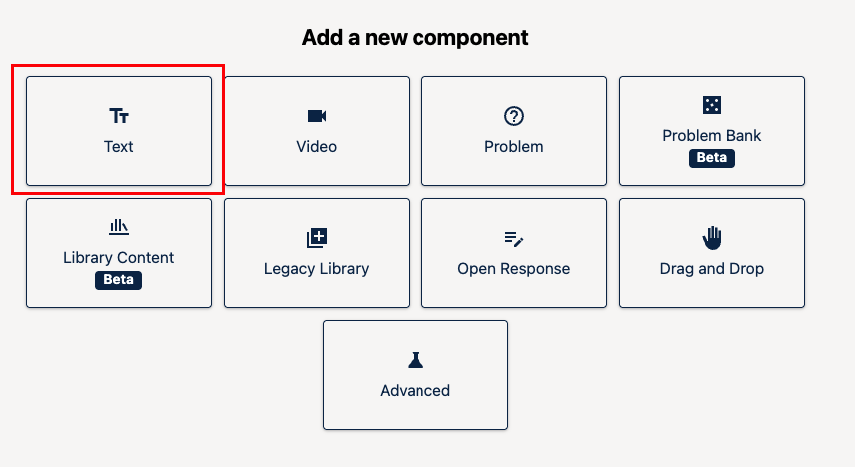
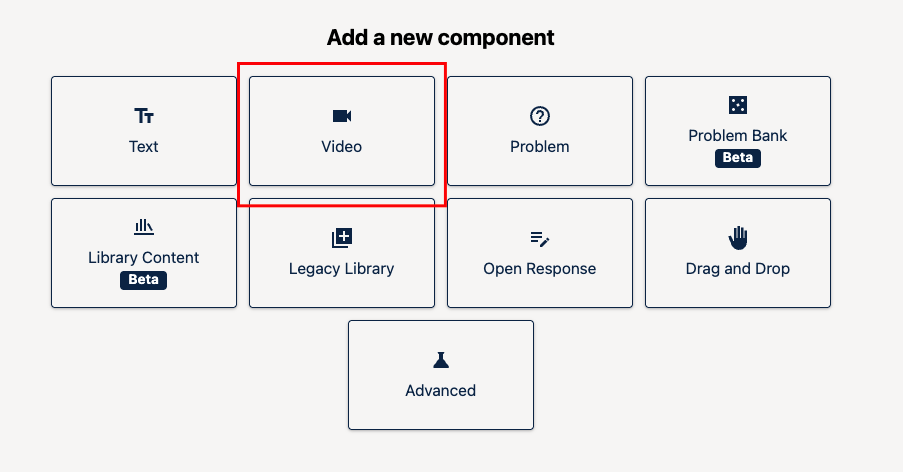
You will see the component toolbar offering options to add content types: Text, Video, Problem, or Advanced.
-
Click on Text to add rich text, formatted headings, and images.
-
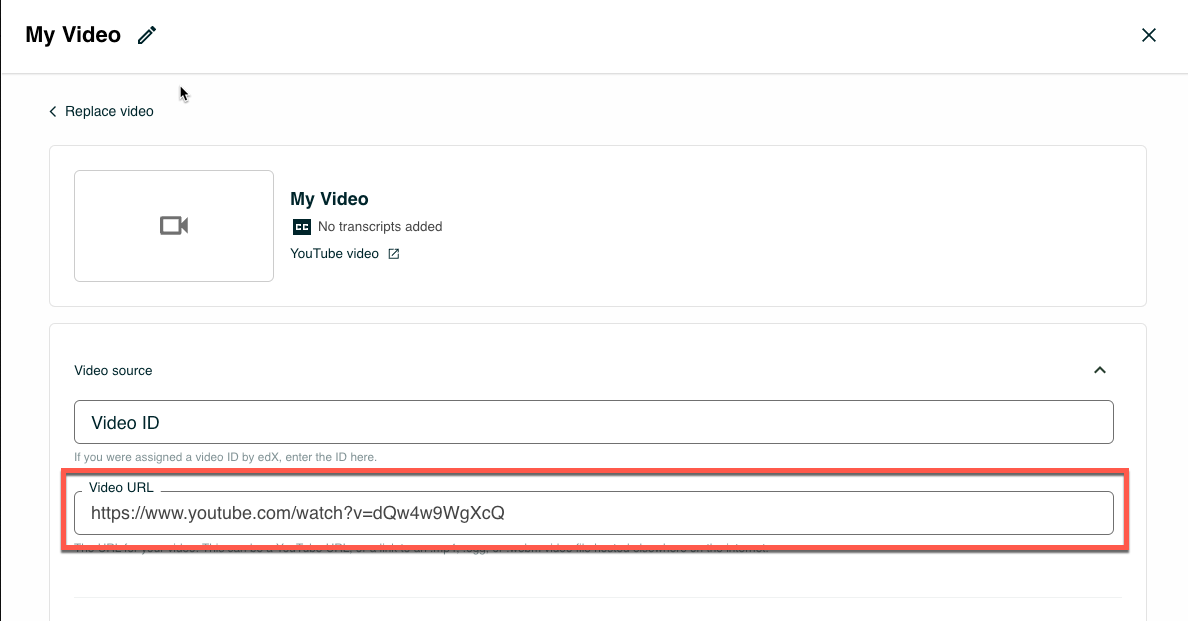
Click on Video to configure video lectures, upload subtitles, and set up the video player.
-
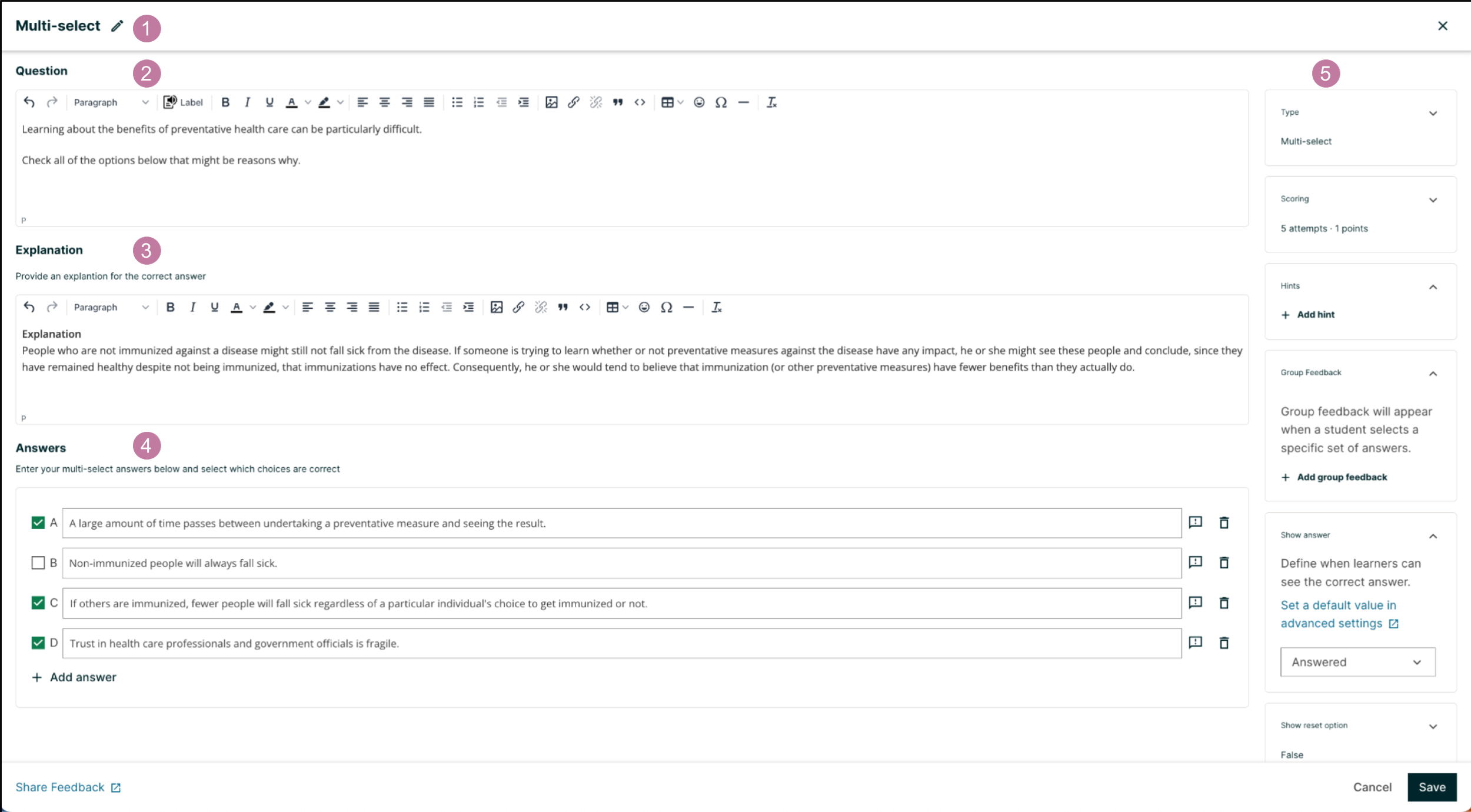
Click on Problem to insert interactive quizzes or homework questions directly into the page.
-
-
Edit and Preview:
- Use the built-in inline editors to format your text or configure component settings.
- Click the "Preview" button at the top right of the unit page at any time to see how the content will appear to learners.
Part 3: Publishing Your Content
- Publish Individual Units:
- When editing a unit, click the "Publish" button to make your changes live.
- Bulk Publishing (Verawood Feature):
-
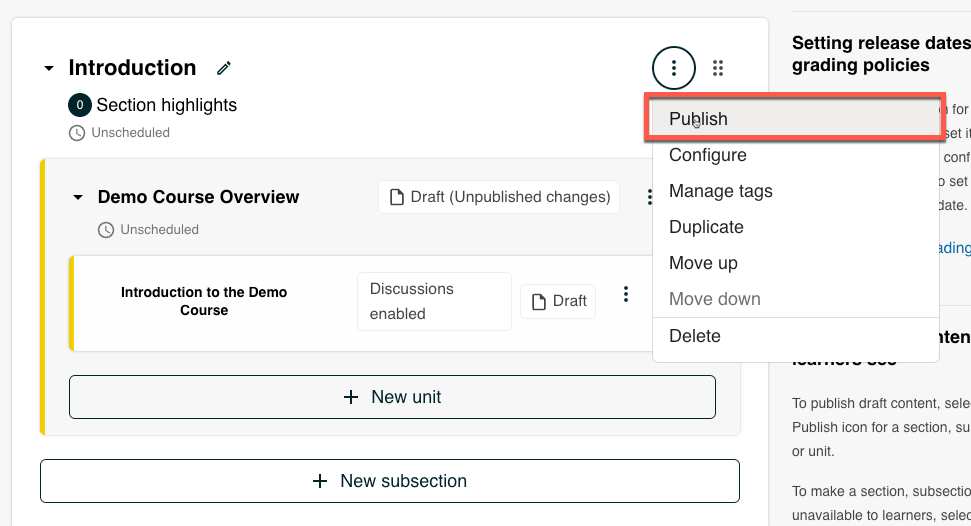
You can also publish entire subsections or sections directly from the Course Outline view by clicking the publish icon next to the module header, streamlining the release of weekly content.
-
Need help? If you experience any issues during registration or login, please reach out to support@abstract-technology.de.